




How to Use Google Search Console to Improve Your Website: A Beginner’s Guide Having a website online is only the beginning. Whether you run a personal blog, a business website, a portfolio, or an online publication, you probably want people to discover your pages through Google Search. But how do you know whether Google can
How to Use Google Search Console to Improve Your Website: A Beginner’s Guide
Having a website online is only the beginning. Whether you run a personal blog, a business website, a portfolio, or an online publication, you probably want people to discover your pages through Google Search.
But how do you know whether Google can find your website? How can you tell which articles are attracting visitors? And what should you do when an important page does not appear in search results?
This is where Google Search Console becomes useful.
Google Search Console is a free tool that helps website owners understand how their websites perform in Google Search. It provides information about search impressions, clicks, indexing, and certain technical issues that may affect how Google discovers and processes website content.
For bloggers and website owners, it is particularly useful because it provides information directly from Google rather than relying entirely on estimates from third-party SEO tools.
In this guide, you will learn how to set up Google Search Console, understand its main reports, check whether your pages are indexed, discover the searches bringing visitors to your website, and use the information to make practical improvements.
You do not need to be an SEO expert to get started. We will explain the important features step by step, with examples that beginners can follow.
1. What Is Google Search Console?
Google Search Console (GSC) is a free web service provided by Google that helps website owners monitor and troubleshoot their websites’ performance in Google Search.
It provides information about how Google discovers, crawls, and indexes website pages, as well as how those pages perform when they appear in search results.
For example, imagine you have a blog about digital marketing.
You publish an article titled “How to Start a Blog”. After a few weeks, you want to know whether people are finding it through Google.
With Google Search Console, you can investigate questions such as:
- How many times has the article appeared in Google Search?
- How many people clicked on it?
- Which search phrases caused it to appear?
- What is its average search position?
- Has Google indexed the article?
- Are there any indexing or technical issues affecting the page?
Instead of guessing, you can use this information to understand what is happening and decide what to improve.
Google Search Console is useful for:
- Bloggers and content creators.
- Website owners.
- Freelancers and SEO professionals.
- Small businesses.
- Publishers.
- Developers and web administrators.
You can access the service through the official website:
2. What Can Google Search Console Do for Your Website?
Google Search Console has several features, but you do not need to understand everything immediately.
For a beginner, the most useful functions are monitoring search performance, checking indexing, inspecting individual URLs, and submitting sitemaps.
Here is what the main features help you accomplish.
Monitor website performance
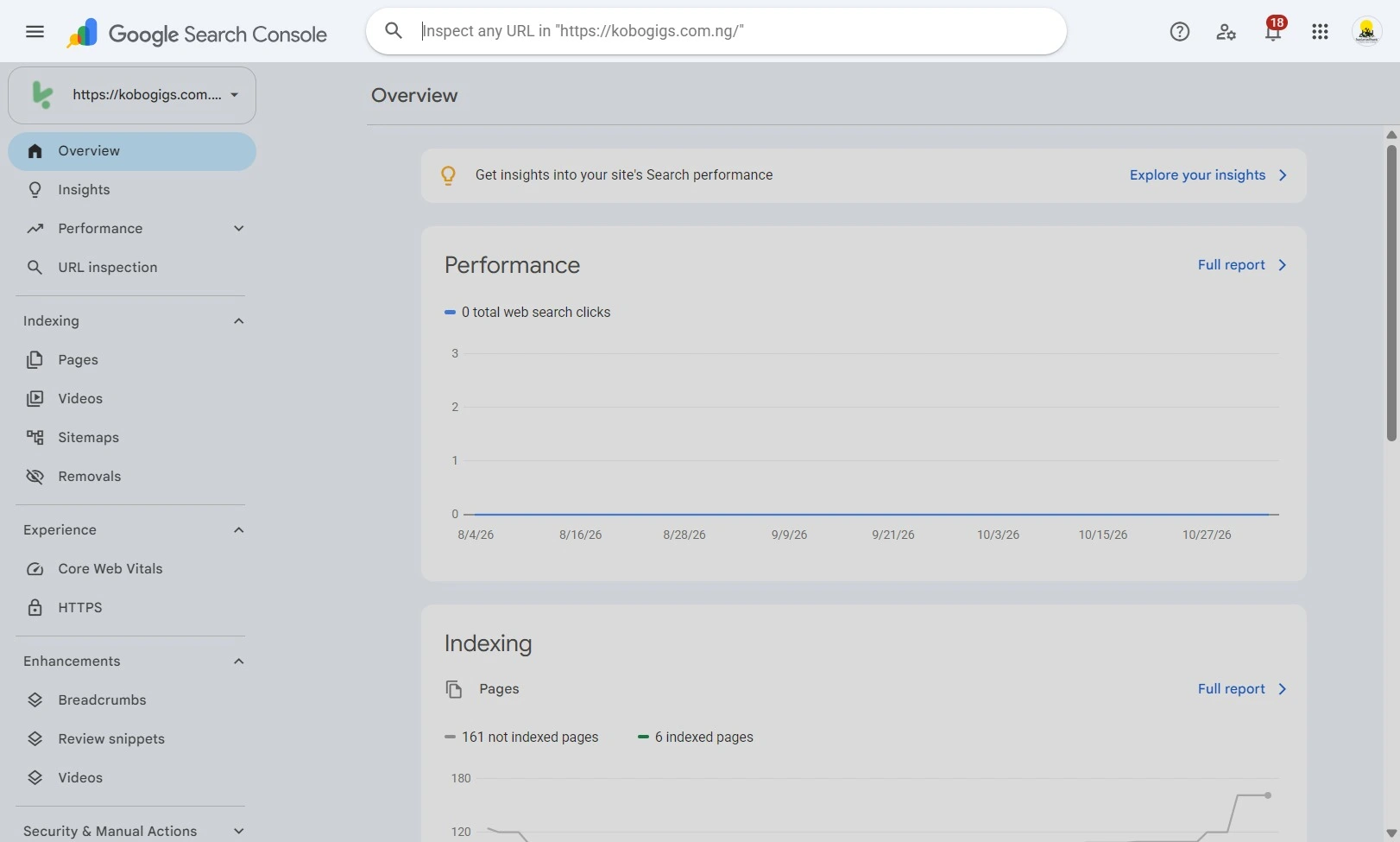
The Performance report shows how your website appears in Google Search.
You can see clicks, impressions, click-through rate, and average position.
This information helps you understand which pages are attracting attention and which search queries are bringing visitors to your website.
Check whether Google has indexed your pages
Google needs to discover and process a page before it can appear in its search results.
The Page indexing report helps you understand which pages are indexed and provides information about pages that are not.
This is particularly useful when you publish new articles and want to investigate why some are not appearing in Google Search.
Inspect individual URLs
The URL Inspection tool lets you investigate a particular page.
You can check whether Google has indexed it, review available crawl information, and request indexing when appropriate.
Submit your sitemap
A sitemap helps Google discover important URLs on your website.
Search Console allows you to submit your sitemap and monitor whether Google can process it.
Monitor Core Web Vitals
The Core Web Vitals report provides information about how real users experience your website’s loading performance, responsiveness, and visual stability.
This can help you identify pages that may need performance improvements.
Review external links
The Links report provides information about links Google has discovered pointing to your website, as well as internal links between your pages.
This can help you understand how your website’s content is connected.
Important: Google Search Console is primarily a monitoring and diagnostic tool. Using it does not automatically improve your rankings. The real value comes from understanding its information and making appropriate improvements to your website.
3. How to Set Up Google Search Console
Before using the reports, you need to add your website to Google Search Console and verify that you own or have permission to manage it.
The process is relatively straightforward.
Step 1: Visit Google Search Console
Open: https://search.google.com/search-console/
Sign in using your Google account.
If you already use Gmail, you can use the same Google account.
Once signed in, you will be able to add a website property.
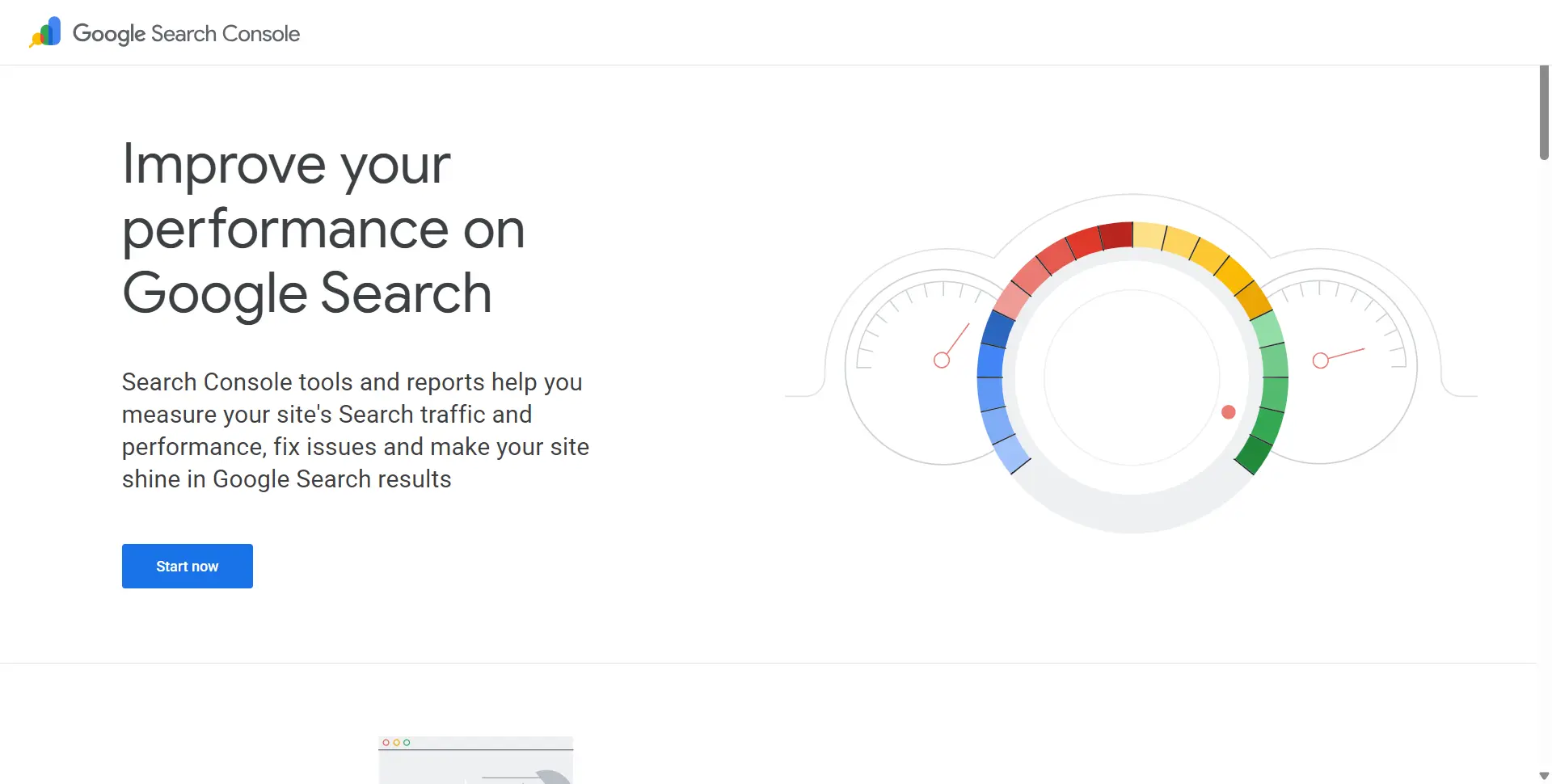
google search console welcome screen
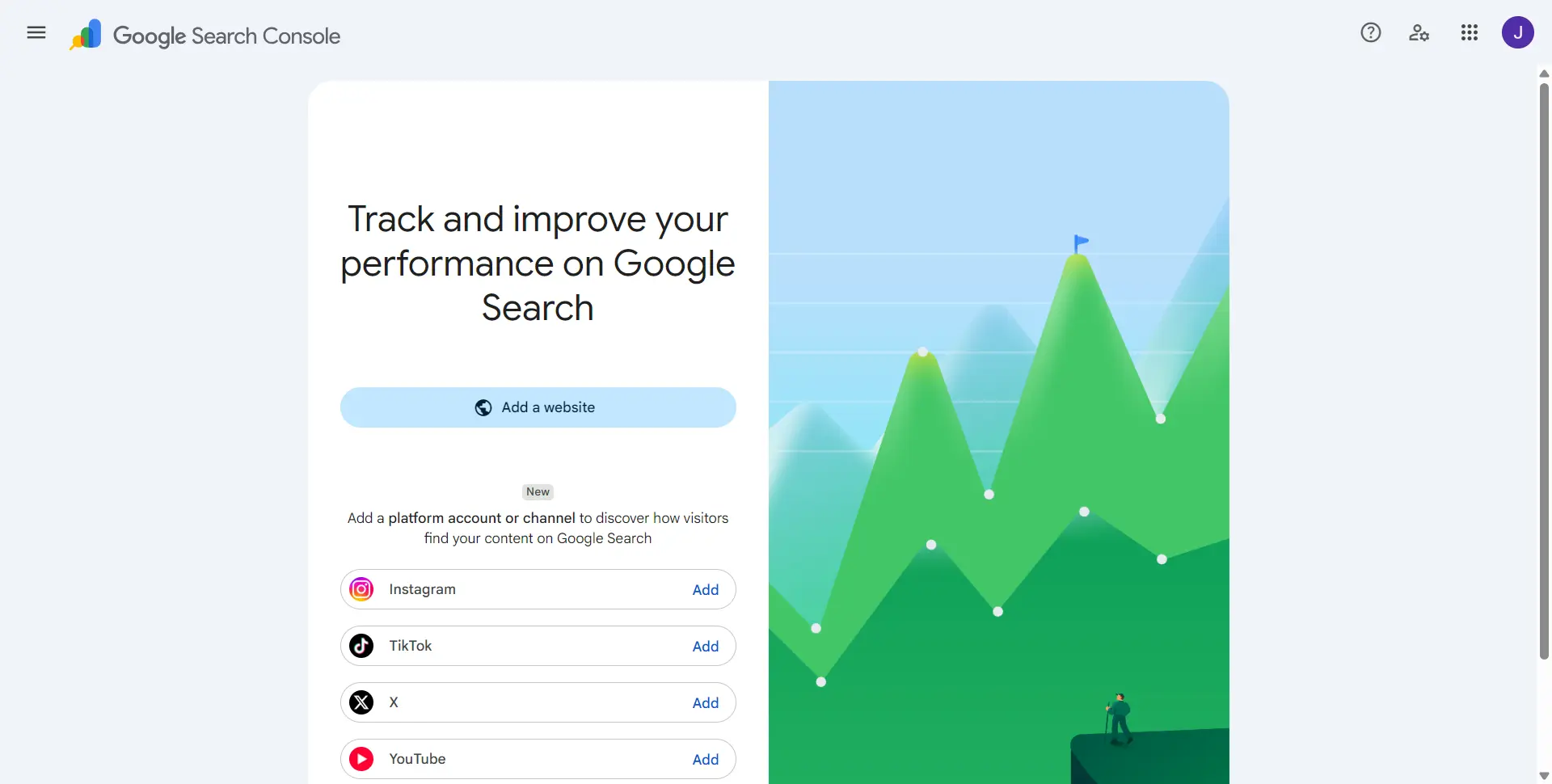
Step 2: Choose a property type
Google Search Console provides two main property options:
Domain property
A Domain property covers all subdomains and protocols associated with the domain.
For example, a property for:
example.com
can cover:
https://example.comhttp://example.comhttps://www.example.com- Other subdomains.
Domain properties require DNS verification.
URL-prefix property
A URL-prefix property covers URLs that begin with the exact address you enter.
For example:
https://www.example.com/
This is different from:
https://example.com/
It is also different from:
http://example.com/
URL-prefix properties can be verified using several supported methods, depending on your website and hosting arrangement.
Which property should you choose?
For most website owners who can access their domain’s DNS settings, the Domain property is a convenient choice because it covers the different subdomains and protocols.
However, if you cannot access DNS settings, a URL-prefix property may be easier to verify.
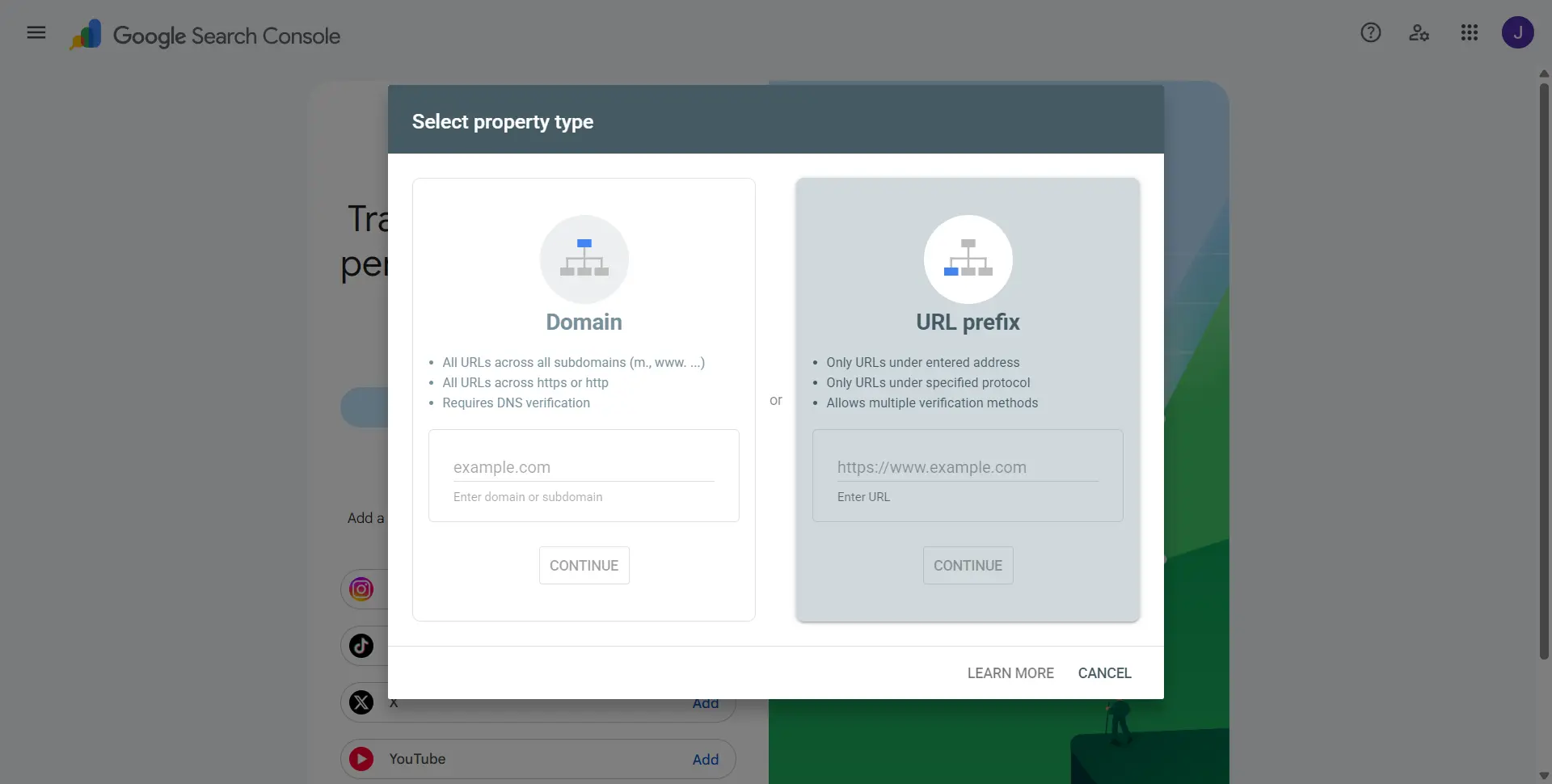
Choosing the correct website property type
Step 3: Enter your website address
If you choose the Domain property, enter your domain without https:// or a page path.
Example:
kobogigs.com.ng
If you choose the URL-prefix property, enter the complete website address, including the protocol.
Example:
https://kobogigs.com.ng/
Double-check the address before continuing.
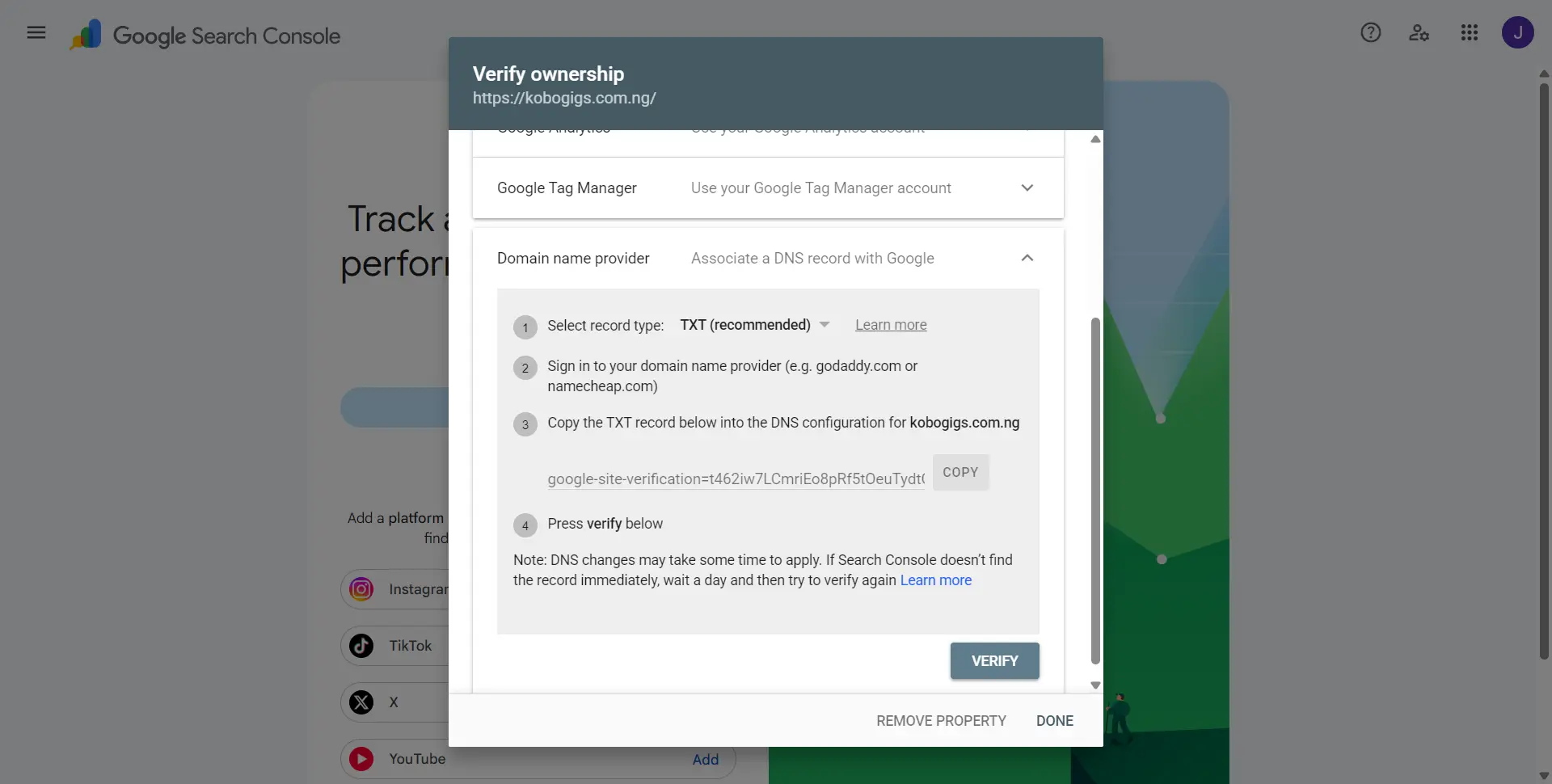
Step 4: Verify website ownership
Google needs to confirm that you own or have permission to manage the website.
For a Domain property, the usual verification method is adding a DNS TXT record.
The general process is:
- Google provides a TXT verification record.
- Sign in to the company managing your domain’s DNS.
- Open the DNS management section.
- Add a new TXT record.
- Copy Google’s verification value into the record.
- Save the changes.
- Return to Search Console.
- Select Verify.
DNS changes can take time to become visible. If verification does not work immediately, wait and try again.
Do not delete the verification record after successful verification unless you have another valid verification method in place.
For a URL-prefix property, other supported verification methods may include:
- An HTML verification file.
- An HTML meta tag.
- Google Analytics.
- Google Tag Manager.
- DNS verification.
The available options depend on your setup and account permissions.
 For detailed instructions, consult Google’s official documentation:
Verify your website ownership in Search Console
Step 5: Confirm successful verification
After verification, Search Console should confirm that your property has been verified.
You can now access its reports.
Keep in mind that some reports may initially contain little or no information because Google needs time to collect and process data.
A newly created website will not necessarily have meaningful performance statistics immediately.
4. How to Submit Your Website Sitemap
After setting up Search Console, one useful next step is submitting your website’s sitemap.
A sitemap is a file that lists important URLs on your website and provides information that can help search engines discover your content.
For a WordPress website, an SEO plugin or WordPress itself may generate a sitemap automatically.
For example, a sitemap might be available at:
https://example.com/sitemap_index.xml
Another common sitemap address is:
https://example.com/wp-sitemap.xml
The correct address depends on how your website is configured.
Step 1: Find your sitemap
Open your website’s sitemap address in a browser.
If you use WordPress, check your SEO plugin’s settings or the default WordPress sitemap location.
Make sure the sitemap loads successfully.
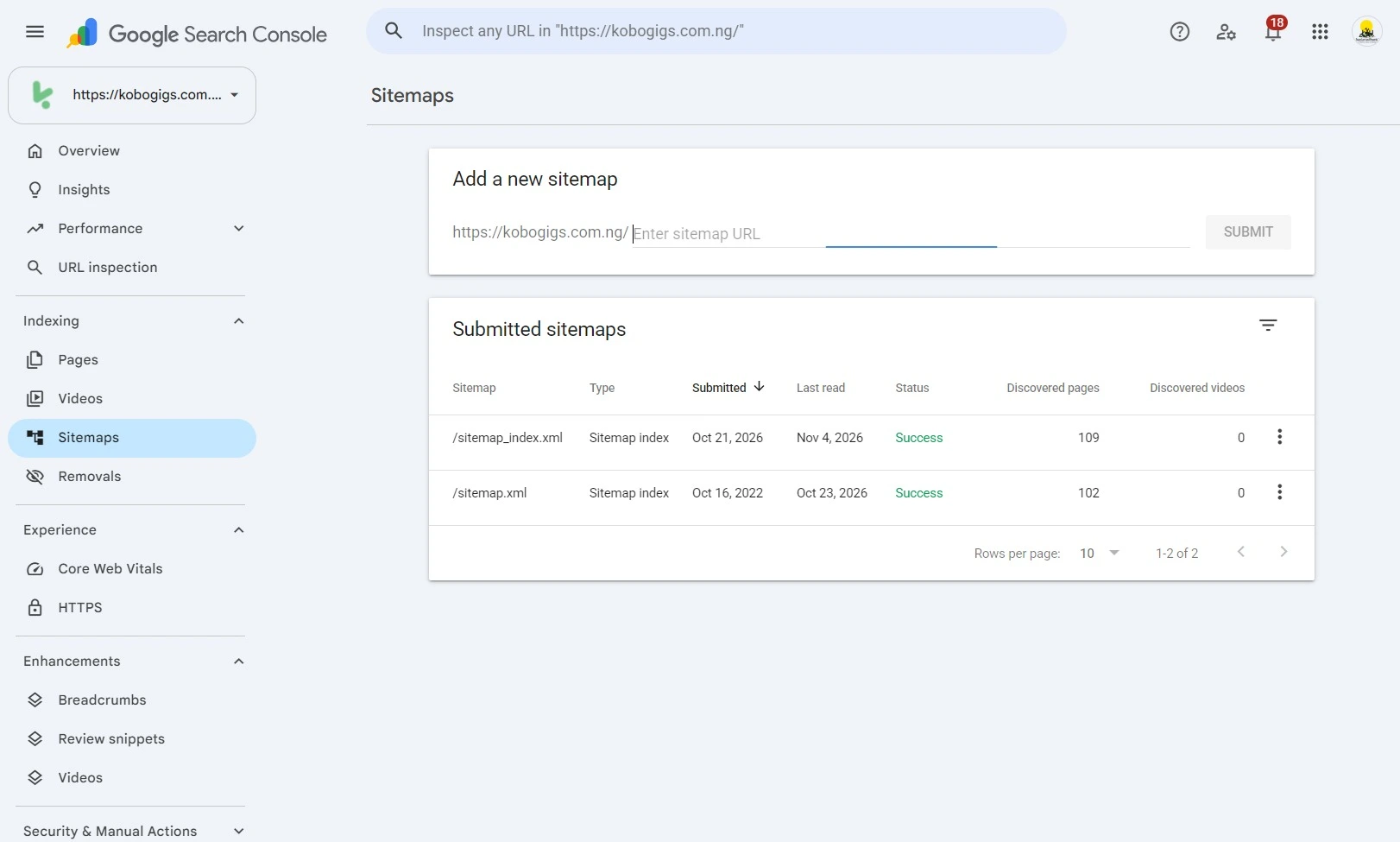
Step 2: Open the Sitemaps report
In Google Search Console:
- Select your website property.
- Find Sitemaps in the left-hand navigation.
- Open the report.
Step 3: Enter your sitemap URL
In the Add a new sitemap section, enter the sitemap path.
For example:
sitemap_index.xml
If your website uses that sitemap address, the full URL will be:
https://example.com/sitemap_index.xml
Select Submit.
Step 4: Check the submission status
After submission, Search Console will display information about the sitemap.
Check whether it was successfully fetched or whether an error occurred.
If an error appears, check:
- Whether the sitemap URL is correct.
- Whether the sitemap is publicly accessible.
- Whether the server returns an error.
- Whether the sitemap contains valid URLs.
- Whether access is being blocked unintentionally.
Does submitting a sitemap guarantee indexing?
No.
Submitting a sitemap helps Google discover URLs, but it does not guarantee that Google will crawl, index, or rank every page included in it.
Google still evaluates whether pages are accessible, useful, and eligible for indexing.
You can read Google’s official instructions here:
Learn how to build and submit a sitemap
5. Understanding the Google Search Console Performance Report
The Performance report is one of the most useful sections of Google Search Console.
It helps you understand how people find your website through Google Search.
When you open the report, you will see several important metrics.
Clicks
Clicks represent the number of times users clicked through to your website from Google Search results.
For example, if your article appeared in search results and 35 people clicked it, that would contribute 35 clicks to the report.
More clicks can indicate that your pages are attracting search visitors.
However, the number of clicks alone does not tell you whether your content is meeting visitors’ needs.
Impressions
An impression is recorded when a link to your website appears in a Google Search result and meets Google’s impression-counting requirements.
For example, imagine your article appears in search results 1,200 times during a reporting period.
That would represent 1,200 impressions.
An impression does not mean someone visited your website. It means your page was shown in a qualifying search result.
Click-through rate (CTR)
CTR is the percentage of impressions that resulted in clicks.
The calculation is:
CTR = (Clicks ÷ Impressions) × 100
For example:
- Impressions: 1,000
- Clicks: 50
CTR = (50 ÷ 1,000) × 100
CTR = 5%
This means 5% of the recorded impressions resulted in clicks.
If a page receives many impressions but relatively few clicks, you may want to review its search appearance.
Consider whether:
- The title clearly describes the content.
- The description accurately communicates what readers will learn.
- The page matches the search intent.
- The topic is presented in a way that stands out appropriately.
Do not change titles simply to increase clicks if the new title becomes misleading.
Average position
Average position is a calculated average of the position of your website’s highest result for a particular reporting context.
For example, a page may appear in different positions for different searches.
Its average position is calculated across the relevant appearances.
A lower numerical position generally indicates a higher placement.
However, average position is not a fixed ranking. Search results can vary depending on the query, location, device, and other factors.
It is best used as a broad performance indicator rather than an exact ranking tracker.
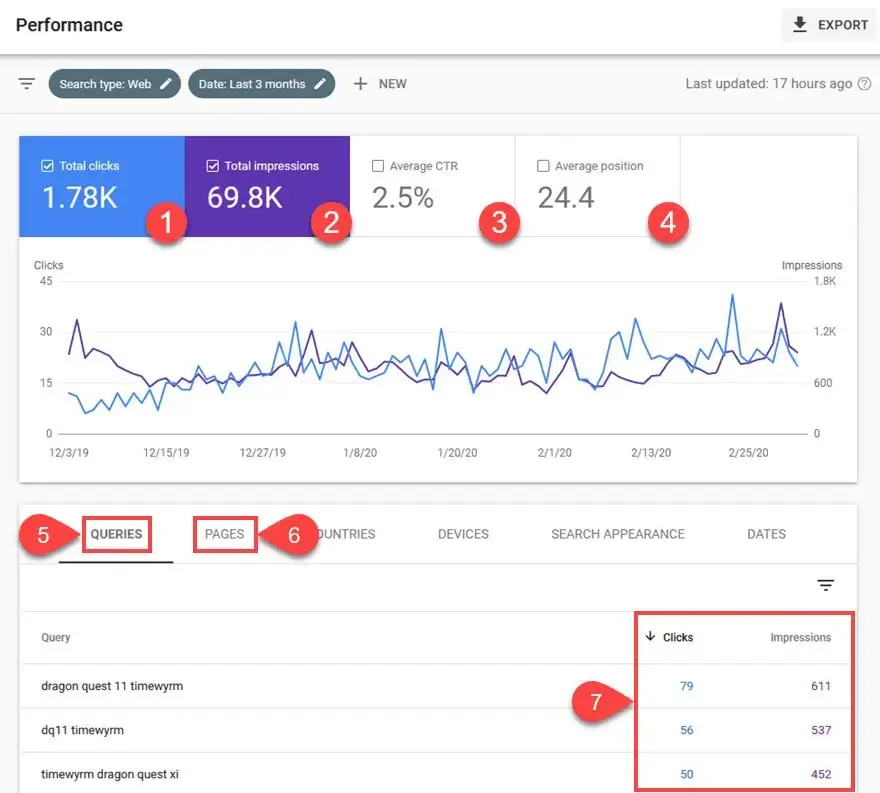
Where to find these metrics
To access them:
- Open your Google Search Console property.
- Select Performance.
- Open Search results.
- Review the metric cards at the top.
- Adjust the date range if necessary.
You can also compare different periods to understand whether your search performance is changing.
Google provides further details here:
Search Console Performance report
6. How to Discover Which Keywords Bring Visitors to Your Website
One of the most useful things you can do with Search Console is discover the actual search queries that cause your website to appear in Google Search.
These queries can reveal what people are looking for and which topics Google associates with your content.
Step 1: Open the Performance report
Select Performance, then Search results.
Make sure the reporting period covers enough time to provide useful information.
For a new website, you may need to wait until more search activity has accumulated.
Step 2: Find the Queries tab
Scroll below the performance chart.
Select Queries.
You will see search phrases associated with your website’s performance.
For example, a website about blogging might discover queries such as:
| Search query | Clicks | Impressions |
|---|---|---|
| how to start a blog | 24 | 650 |
| blogging tips for beginners | 12 | 380 |
| best blogging platform | 8 | 290 |
| how much does a blog cost | 5 | 210 |
These figures are illustrative examples, not actual KoboGiGS search data.
Step 3: Identify useful opportunities
Look for queries that reveal:
- Topics your audience is interested in.
- Questions your existing articles already answer.
- Related subjects you have not covered.
- Articles receiving impressions but relatively few clicks.
- Search terms that may reveal a mismatch between your article and readers’ expectations.
For example, imagine you publish an article about starting a blog.
Search Console shows that it receives impressions for the query:
“How much does it cost to start a blog in Nigeria?”
However, your article only briefly mentions the cost.
This may suggest an opportunity to improve the relevant section with a clearer explanation of domain registration, hosting, renewals, and optional expenses.
You could also create a separate detailed article about blogging costs if it addresses a distinct reader need.
The important thing is to improve the information rather than simply repeat a search phrase several times.
Step 4: Explore the Pages tab
Select Pages instead of Queries.
This shows which website pages are receiving search impressions and clicks.
You can use this information to identify your strongest pages and articles that may deserve additional attention.
7. How to Check Whether Google Has Indexed Your Website Pages
Publishing an article does not automatically mean that Google has indexed it.
Indexing is the process through which Google processes a page and stores information about it so that it may be eligible to appear in search results.
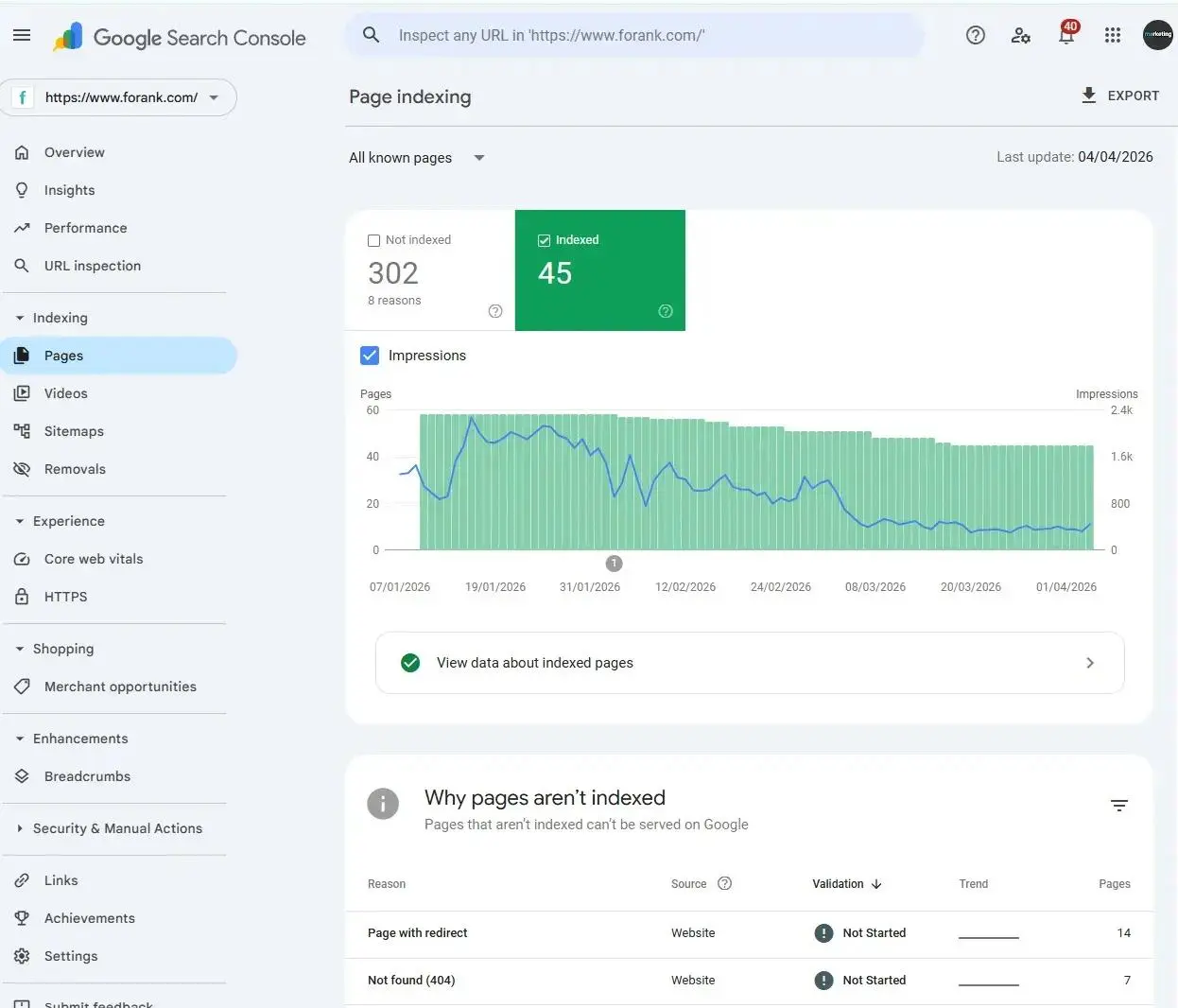
The Page indexing report helps you understand what is happening with your website’s URLs.
Step 1: Open the Page indexing report
In Search Console, select Indexing and then Pages.
You should see a report showing information about indexed and non-indexed pages.
The exact figures and status categories will depend on your website.
Step 2: Understand indexed pages
Indexed pages are URLs that Google has added to its index.
This generally means they are eligible to appear in Google Search when relevant.
However, being indexed does not guarantee that a page will rank highly or receive traffic.
Step 3: Understand non-indexed pages
Some URLs may not be indexed.
That is not necessarily a problem.
For example:
- Duplicate URLs may be consolidated.
- Redirected URLs may not need separate indexing.
- Pages marked with a noindex directive are intentionally excluded.
- Some pages may have been discovered but not yet crawled.
- Some pages may have been crawled but not indexed.
The important thing is to understand why a URL is not indexed before trying to fix it.
Common indexing statuses and what they mean
Discovered – currently not indexed
Google knows about the URL but has not yet crawled it.
Possible next steps include checking whether the page is important, whether it is linked internally, and whether the website is accessible.
Crawled – currently not indexed
Google has crawled the page but has not added it to its index.
Review the content and technical setup.
Ask whether the page offers distinct value or duplicates information already available elsewhere.
Duplicate without user-selected canonical
Google has identified duplicate content and selected a canonical URL without an explicit canonical preference from the website owner.
Check whether the duplicate URLs are expected and whether the canonical setup reflects your intended structure.
Alternate page with proper canonical tag
Google has identified another URL as the preferred version.
This is often normal when you intentionally have duplicate or alternative versions of a page.
Excluded by noindex tag
The page contains an instruction telling search engines not to index it.
If the page should appear in search results, investigate why the noindex instruction exists.
If the exclusion is intentional, no action may be necessary.
Not found (404)
Google attempted to access a URL that returned a not-found response.
Check whether the page was deleted, moved, or linked incorrectly.
If the content has moved permanently, consider an appropriate redirect to its replacement.
Do not redirect every missing URL to your homepage. Redirect only when there is a relevant replacement.
Should you fix every non-indexed URL?
No.
Not every URL on your website needs to appear in Google Search.
For example, internal search pages, administrative pages, duplicate pages, and intentionally excluded content may not need indexing.
Focus on important pages that you actually want people to discover.
Google’s documentation provides additional explanations of indexing reports and page statuses:
8. How to Use the URL Inspection Tool
The URL Inspection tool is useful when you want to investigate a particular page.
For example, you have published an article and want to know whether Google has indexed it.
Instead of looking through the entire Page indexing report, you can inspect the exact URL.
Step 1: Copy your page URL
Visit the published article and copy its complete address.
For example:
https://example.com/how-to-start-a-blog/
Make sure you use the correct version of the URL.
Step 2: Open URL Inspection
At the top of Google Search Console, locate the URL Inspection search field.
Paste your page address into it.
Press Enter.
Step 3: Review the inspection result
Search Console will provide information about Google’s knowledge of the URL.
Depending on the page’s status, you may see messages indicating that the URL is on Google or that it is not currently indexed.
You can also review available details about:
- Page indexing status.
- Last crawl information.
- Crawling availability.
- Canonical URL information.
- Mobile and structured data details where applicable.
Step 4: Test the live URL
If the page is not indexed or you suspect a technical issue, select Test Live URL where available.
This allows Google to test the page as it is currently accessible.
It can help identify problems such as:
- The page cannot be accessed.
- The page is blocked from crawling.
- The page has an unintended noindex instruction.
- The server returns an error.
- Other technical issues prevent successful processing.
Step 5: Request indexing when appropriate
If the page is accessible and you have made a meaningful update, you may use Request Indexing.
Google will add the URL to its priority crawl queue, subject to its processing limits.
However, requesting indexing does not guarantee that Google will index the page or that its ranking will improve.
Avoid repeatedly submitting the same URL without making meaningful changes.
Read Google’s official guide:
9. How to Use Search Console to Improve Existing Blog Articles
This is where Search Console becomes particularly valuable for bloggers.
Instead of publishing new articles continuously without reviewing existing content, you can use the information in your reports to identify opportunities for improvement.
Let’s consider a practical example.
Imagine you run a blog about freelancing.
You published an article titled:
“How to Find Freelance Jobs Online”
After several weeks, you check Search Console and discover the following illustrative data:
| Metric | Example result |
|---|---|
| Impressions | 2,500 |
| Clicks | 45 |
| CTR | 1.8% |
| Average position | 12.5 |
The article is appearing in Google Search, but the number of clicks is relatively small compared with its impressions.
What should you do?
Step 1: Investigate the queries
Open the Queries tab and identify the searches associated with the article.
You might discover that people are searching for:
- Freelance jobs for beginners.
- Websites to find freelance work.
- How to get your first freelance client.
- Remote jobs for Nigerians.
These searches may reveal opportunities to improve the article.
Step 2: Check whether the article answers those questions
Read the article carefully.
Does it explain how beginners can find freelance opportunities?
Does it provide practical examples of platforms?
Does it explain how to create a profile and approach potential clients?
If important information is missing, improve the article with useful, accurate explanations.
Do not add unrelated sections simply because a search query appears in the report.
Step 3: Review the search appearance
Consider whether your title accurately communicates the value of the article.
For example:
Original title:
“Freelance Jobs”
More descriptive title:
“How to Find Freelance Jobs Online: A Beginner’s Guide”
The improved title explains the subject more clearly.
However, the title should accurately reflect the article. Do not promise information the content does not provide.
Step 4: Improve the article structure
Consider whether readers can easily find the information they need.
You might improve:
- Headings.
- Introduction.
- Explanations.
- Examples.
- Internal links.
- Images and screenshots.
- Outdated information.
Step 5: Update and monitor
After making meaningful improvements, publish the updated article.
You can then use URL Inspection to check the page and request indexing if appropriate.
Monitor its performance over time.
Do not expect an immediate ranking increase. Search performance changes can take time, and not every content update will produce a measurable improvement.
The important lesson: Search Console helps you identify opportunities. Your job is to use that information to make the article more useful to readers.
10. How to Monitor Core Web Vitals
Google Search Console also includes a Core Web Vitals report.
Core Web Vitals are measurements that help evaluate important aspects of the user experience.
They focus on:
- Loading performance.
- Interactivity.
- Visual stability.
The three current Core Web Vitals are:
Largest Contentful Paint (LCP)
Measures how quickly the largest visible content element loads.
A lower LCP generally indicates faster loading of the main content.
Interaction to Next Paint (INP)
Measures responsiveness by assessing how quickly a page responds visually to user interactions.
It replaced First Input Delay (FID) as a Core Web Vital.
Cumulative Layout Shift (CLS)
Measures unexpected visual movement during page loading.
For example, if an image or advertisement loads late and pushes the text down while someone is reading, it may contribute to layout instability.
How to access the report
- Open your Search Console property.
- Find Experience or the Core Web Vitals report in the available navigation.
- Review the mobile and desktop reports.
- Examine any groups of URLs marked as needing improvement or poor.
- Investigate the affected pages.
The report uses field data from real users where sufficient data is available.
A newly launched or low-traffic website may not have enough data for every report.
What should you do when a page has poor Core Web Vitals?
Possible improvements include:
- Optimising oversized images.
- Reducing unnecessary scripts.
- Improving server response times.
- Reserving space for images and advertisements.
- Reviewing third-party widgets.
- Improving how the page loads and responds to interactions.
You can also use Google PageSpeed Insights to investigate individual pages.
Remember that Core Web Vitals are only part of the broader page experience picture. A good report does not guarantee high search rankings.
Official documentation:
11. How to Use the Links Report
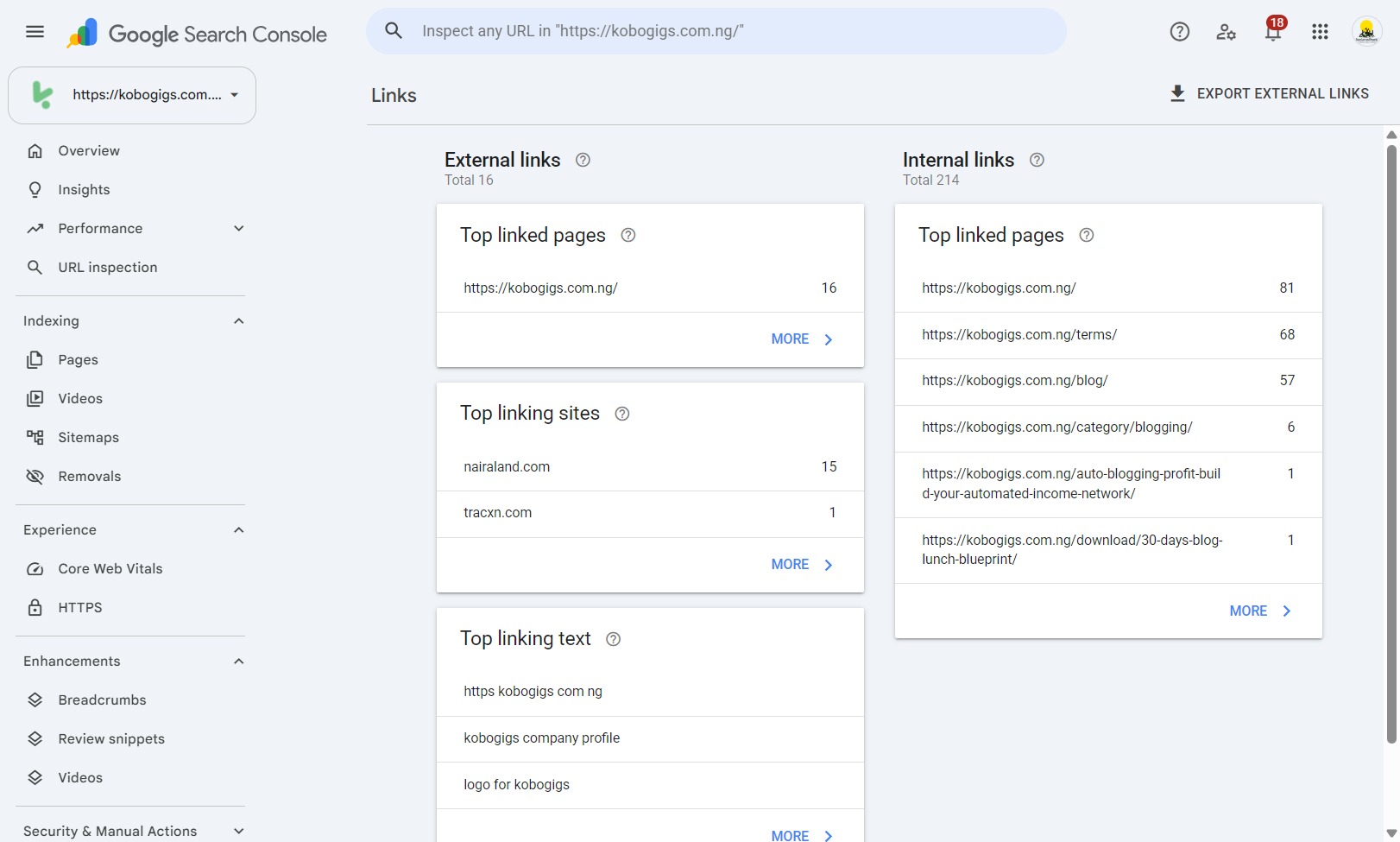
The Links report helps you understand the links Google has discovered on your website.
It has two main areas.
External links
External links are links from other websites pointing to your website.
For example, another blog might reference one of your tutorials and link to it.
These links may help readers discover your content and can contribute to how Google understands your website’s reputation and relevance.
The report may show:
- Top linked pages.
- Top linking sites.
- Top linking text.
Internal links
Internal links connect pages within your own website.
For example, an article about starting a blog might link to another article about choosing a domain name.
Internal links help visitors discover related content and provide search engines with additional paths to find your pages.
How bloggers can use this information
Suppose you discover that your most popular article receives many internal links, but another important article receives very few.
You may want to identify relevant pages where you can naturally link to the less-connected article.
For example, an article about WordPress installation could link to a separate guide about website security.
Make sure the links are relevant and genuinely helpful.
Do not add links simply to increase their number.
Official documentation:
12. How Often Should You Check Google Search Console?
You do not need to spend hours checking Search Console every day.
For most small blogs and business websites, a simple weekly or monthly review is a reasonable starting point.
Your review frequency can change as your website grows.
Here is a practical routine.
Weekly review
Spend a few minutes checking:
- Whether important new pages have been discovered.
- Whether any significant indexing issues have appeared.
- Which queries are generating impressions and clicks.
- Whether important pages are receiving unexpected performance changes.
Monthly review
Take a more detailed look at:
- Pages attracting the most clicks.
- Queries generating impressions but few clicks.
- Changes in CTR and average position.
- Content that may need updating.
- Core Web Vitals where data is available.
- New internal linking opportunities.
After publishing an important article
You can:
- Confirm that the page is publicly accessible.
- Check whether it is included in your sitemap.
- Inspect the URL in Search Console.
- Review any accessibility or indexing issues.
- Monitor its search performance as data becomes available.
Remember that Search Console data is not always immediate. Give Google time to process changes before drawing conclusions.
13. Common Google Search Console Mistakes Beginners Should Avoid
Search Console provides valuable information, but interpreting that information incorrectly can lead to unnecessary changes.
Here are some mistakes worth avoiding.
Mistake 1: Expecting immediate traffic
Adding a website to Search Console does not automatically bring visitors.
You still need useful content, proper technical setup, and a website that serves its intended audience.
Mistake 2: Assuming every page must be indexed
Some URLs should not appear in search results.
Focus on important public pages that you actually want people to discover.
Mistake 3: Requesting indexing repeatedly
Requesting indexing is not a way to force Google to rank a page.
Use the feature when appropriate, especially after publishing or meaningfully updating an important page.
Mistake 4: Treating average position as an exact ranking
Average position is an aggregated metric.
It should not be interpreted as a permanent ranking position for every user and every search.
Mistake 5: Changing articles just to include more keywords
Search Console can reveal relevant search queries, but that does not mean you should insert every query into your content.
Focus on answering the questions readers genuinely have.
Mistake 6: Ignoring technical problems
If important pages cannot be crawled or indexed because of a technical issue, publishing more articles may not solve the underlying problem.
Investigate the problem and address its cause.
Mistake 7: Confusing impressions with visitors
An impression means your result appeared in a qualifying Google Search context.
It does not mean someone visited your website.
Clicks and impressions measure different things.
Mistake 8: Assuming every traffic drop is a Google penalty
Search traffic can change for several reasons, including seasonality, changes in search demand, competitors, technical issues, and search ranking changes.
Investigate the evidence before assuming your website has received a penalty.
14. A Practical Google Search Console Checklist for Website Owners
Use this checklist when setting up and managing your website.
Initial setup
-
I have created a Google Search Console account.
-
I have added the correct website property.
-
I have verified website ownership.
-
I have checked that I selected the correct domain or URL prefix.
-
I have located my website’s XML sitemap.
-
I have submitted my sitemap.
-
I have confirmed that important pages are publicly accessible.
Performance monitoring
-
I know where to find the Performance report.
-
I understand clicks and impressions.
-
I understand CTR and average position.
-
I have checked the Queries report.
-
I have reviewed the Pages report.
-
I know how to compare reporting periods.
Indexing and technical checks
-
I have reviewed the Page indexing report.
-
I know how to inspect an individual URL.
-
I understand why some pages may not be indexed.
-
I have checked important pages for unintended noindex instructions.
-
I know how to request indexing when appropriate.
-
I have reviewed Core Web Vitals where data is available.
Ongoing improvements
-
I regularly review important search queries.
-
I update articles when there is a genuine need.
-
I add relevant internal links.
-
I investigate unexpected changes in search performance.
-
I check that important website pages remain accessible.
15. Frequently Asked Questions About Google Search Console
Is Google Search Console free?
Yes. Google Search Console is a free service provided by Google.
You do not need to purchase a subscription to access its standard reports and features.
Do I need Google Search Console for my website?
You are not required to use Search Console to have a website appear in Google Search.
However, it is a useful tool for website owners who want to understand how Google discovers and processes their content.
It can also help you identify certain indexing and technical issues.
How long does Google Search Console take to show data?
The time varies depending on the report and the activity on your website.
Performance data is not necessarily available immediately after setup. Some reports may also take time to collect sufficient information.
A new website may initially show very little data.
Does submitting a sitemap guarantee that Google will index my pages?
No.
Submitting a sitemap helps Google discover URLs, but Google decides which pages to crawl and index.
Make sure your pages are accessible, useful, and eligible for indexing.
Can Google Search Console improve my website rankings?
Search Console itself does not directly improve rankings.
It provides information that can help you identify opportunities and problems.
You can use those insights to improve your content, website structure, and technical setup.
Can I use Google Search Console on my phone?
You can access Search Console through a mobile browser, although some reports and detailed analysis may be easier on a desktop or laptop.
Can I use Google Search Console with WordPress?
Yes.
Search Console works with WordPress websites, regardless of whether you use WordPress.org or WordPress.com, provided you can complete the required ownership verification.
You do not need a special WordPress plugin to use Search Console.
Why does Google Search Console show impressions but no clicks?
This means your website has appeared in qualifying search results, but no recorded clicks were attributed to those impressions during the selected reporting period.
Review the queries, search appearance, titles, and relevance of the pages involved.
A page can receive impressions without attracting clicks, particularly when it appears lower in search results.
Why is my website not showing in Google Search?
There are several possible reasons.
Google may not have discovered the website yet, the pages may not have been crawled or indexed, or technical settings may prevent indexing.
Use Search Console’s URL Inspection and Page indexing reports to investigate.
Also check that important pages are not unintentionally blocked or marked noindex.
Is Google Search Console the same as Google Analytics?
No. They serve different purposes.
Google Search Console focuses on how your website performs in Google Search, including impressions, clicks, queries, and indexing information.
Google Analytics helps you understand activity on your website, such as user sessions, engagement, and conversions.
The two tools can complement each other, but they do not provide identical information.
Conclusion: Use Google Search Console to Make Better Website Decisions
Google Search Console is one of the most useful free tools available to bloggers and website owners.
It helps you understand how Google discovers your pages, which searches bring visitors to your website, and whether important content has indexing or technical problems.
You do not need to master every feature immediately.
Start by verifying your website, submitting your sitemap, and learning how to use the Performance and Page indexing reports.
As your website grows, explore URL Inspection, Core Web Vitals, and the Links report.
Most importantly, do not treat Search Console as a tool for chasing numbers alone. Use its information to understand what your audience is searching for, identify gaps in your content, and improve the experience your website provides.
A website becomes more useful when its owner understands how people discover it and continually works to make its content better.
If you have not set up Google Search Console yet, visit the official website and add your website today. It is a practical first step towards understanding your website’s visibility in Google Search.
Official Google Resources and Further Reading
The following resources provide additional guidance and technical instructions:
- Google Search Console – Official website
- Getting started with Search Console
- Verify your website ownership
- Submit a sitemap
- Performance report
- Page indexing report
- URL Inspection tool
- Core Web Vitals report
- Links report
- Google Search Central documentation
These official resources are useful when you need more detailed explanations or want to confirm the latest instructions.












Leave a Comment
Your email address will not be published. Required fields are marked with *